Install Teamdott as a Windows app (two clicks, no store)
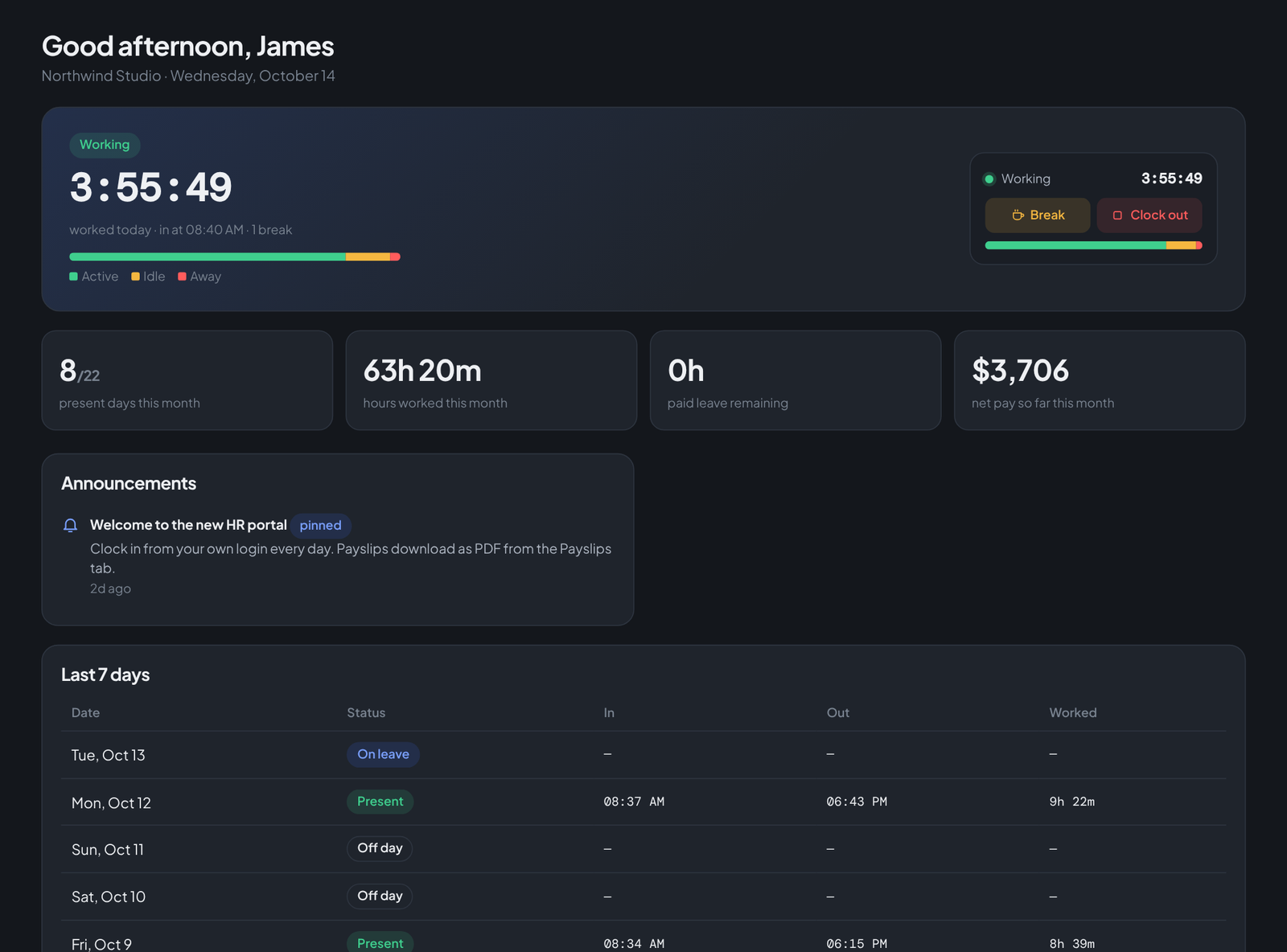
A tool your team opens every morning to clock in should not live in tab #23. Teamdott installs as a real Windows app — its own window, its own taskbar icon, pinned to Start — directly from the browser. No Microsoft Store, no installer download, about ten seconds.
Install in Chrome or Edge
- Open teamdott.com in Chrome or Edge on Windows.
- Click Install app in the site header — or the small install icon that appears at the right end of the address bar (Edge: Apps → Install this site as an app).
- Confirm. Teamdott opens in its own window and lands in your Start menu and taskbar like any other program.
The same works on a Mac (Chrome/Edge) and on Android ("Add to Home screen"). On a phone it behaves like a normal app icon.
Why teams install it
- The clock is always one click away. Pin it to the taskbar and clocking in stops being "find the tab". The employee portal feels like the native tool it should be.
- Its own window, no browser clutter — no address bar, no tab strip, fewer misclicks during a client call.
- It opens instantly, and the app shell loads even on a flaky connection.
- Launch on startup (optional): in the app window menu, Settings → start app on login — clocking in becomes part of switching on the computer.
By design: the installed app is the product — workspace, HR console, employee portal. The website extras like this blog stay in your browser; the app stays a tool, not a website in a costume.
Uninstalling (since trust cuts both ways)
Like any Windows app: right-click the icon → Uninstall, or from the app window menu. Nothing lingers.
Put the clock on the taskbar
Install takes ten seconds in Chrome or Edge — and the workspace preview is open right now.